Price
Product or shipping cost changed
DSers Supplier Optimizer
When you need to find AliExpress supplier options for a product, the lowest visible price is only part of the decision. DSers Supplier Optimizer searches for similar products and brings cost, shipping, delivery, sales, and rating signals into one comparison view. Review the alternatives, choose the fit for your market, and connect the selected supplier to your DSers workflow.
Get Started
What Supplier Optimizer does
DSers Supplier Optimizer helps sellers with an existing product image or record find alternative suppliers for the same or a similar item. Start from a product in Import List, My Products, Find Products, Open Orders, or the Mapping Drawer. DSers searches for matching offers and organizes the results so you can compare the information that affects an order—not just a product thumbnail.
The tool supports discovery and comparison; it does not certify product quality or choose for you. Open promising listings, confirm the details that matter, and order a sample when hands-on verification is important.
Import List · My Products · Find Products · Open Orders · Mapping Drawer
Manual research vs. DSers
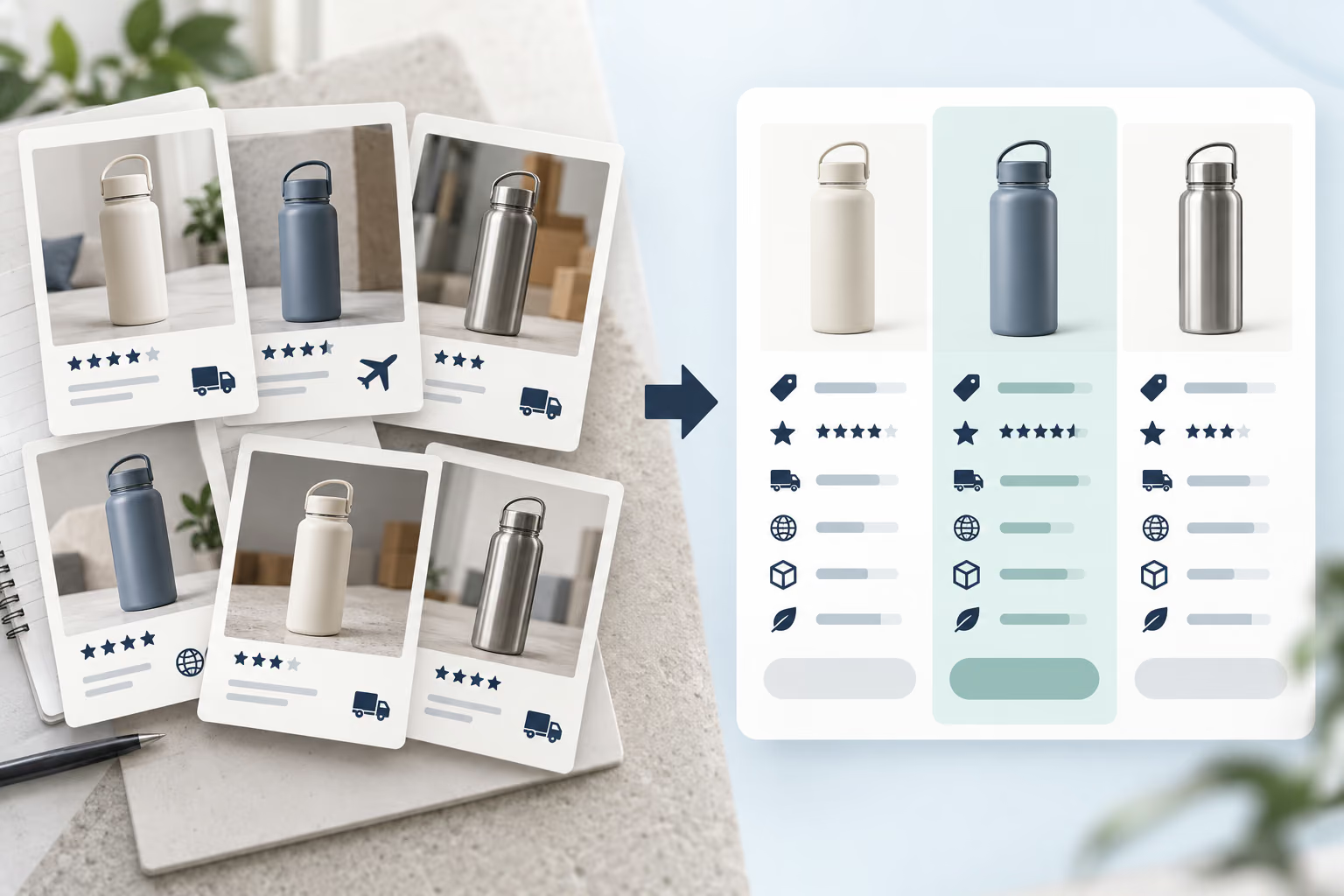
Manual research often means opening multiple listings, changing the destination on each page, checking shipping methods, and recording prices and ratings separately. It becomes harder to repeat when a supplier raises prices, runs out of stock, or stops serving a market.
Supplier Optimizer keeps the product at the center. Review similar offers in a ranked table, set the destination country, filter by shipping method, and compare consistent fields. You still control the decision, with fewer disconnected tabs and a clearer view of the tradeoffs.
Search, filter, inspect
The workflow starts with a product image inside DSers. Click the magnifying-glass icon and DSers searches for similar products from other suppliers. The results can be ranked using factors such as product price, sales, ratings, and delivery time.
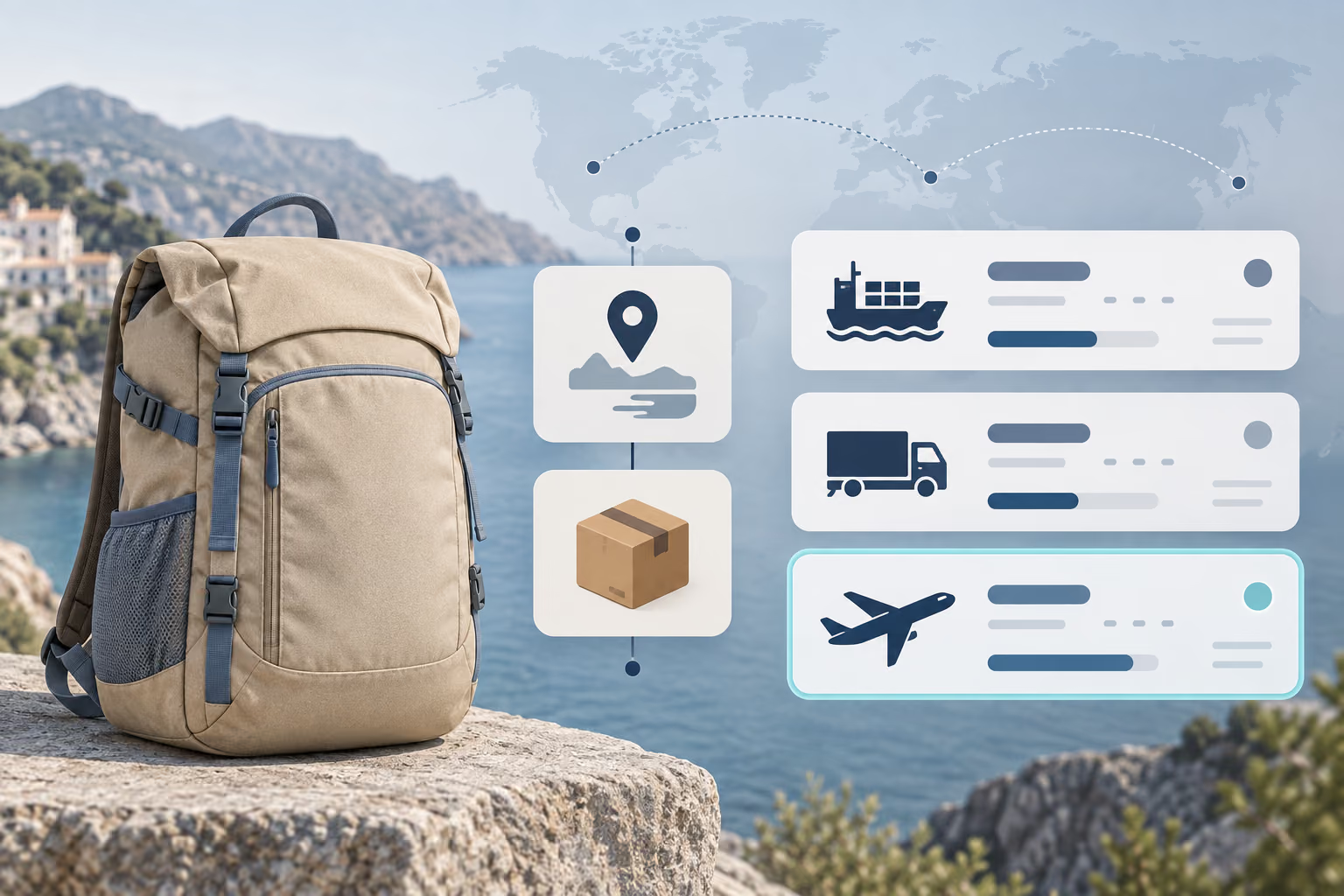
Set Ship to to the customer’s destination. DSers reruns the search so shipping costs and delivery estimates reflect that market. Choose a Shipping Method when a particular service matters. Options and estimates vary by supplier and destination, making the comparison more useful than product cost alone.
Open any promising product name to inspect its supplier listing before you act. When an option meets your requirements, import it into DSers and complete the mapping needed for future orders.
What the results show
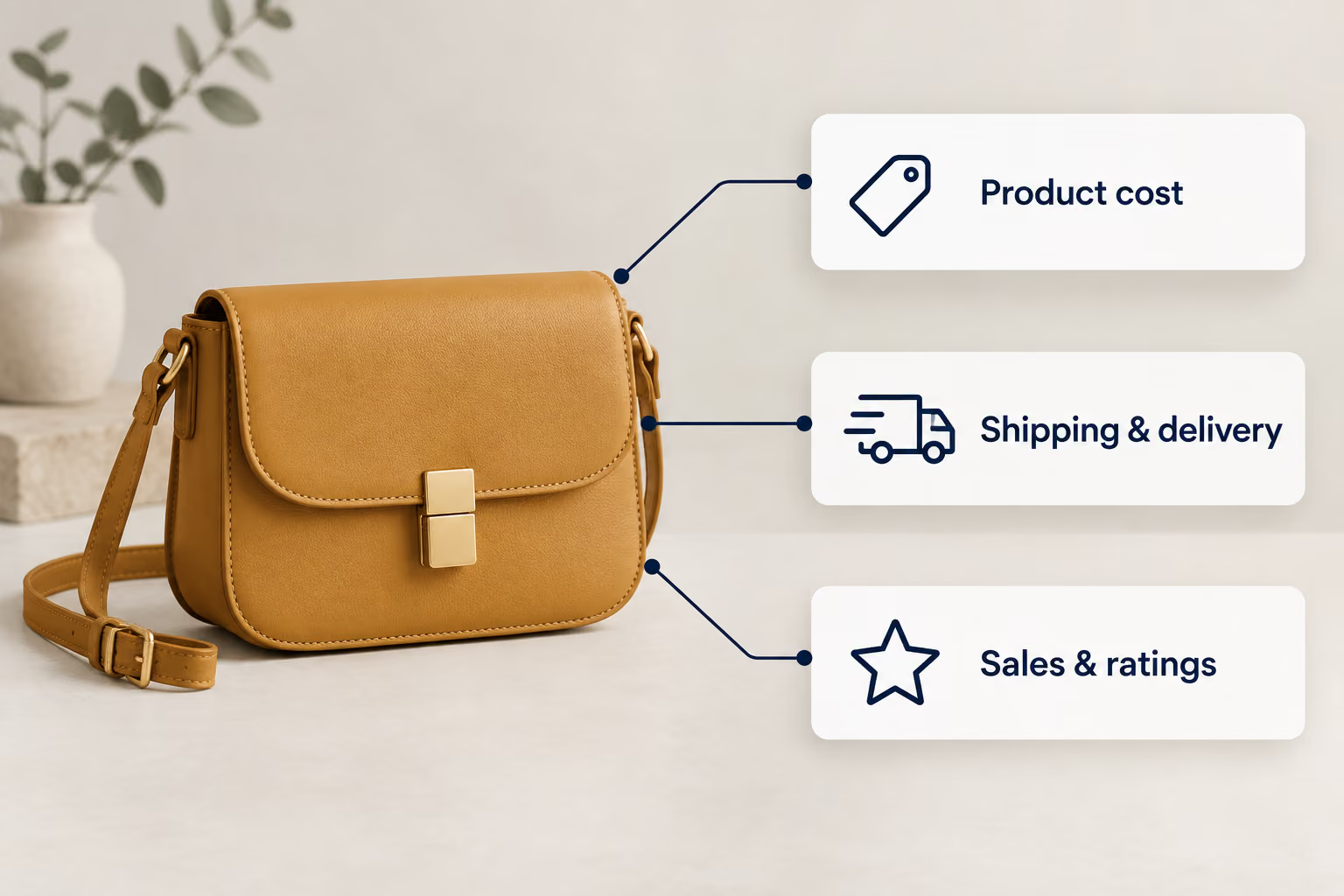
Each result brings together the product image and name, supplier source, base product cost, available shipping method, shipping cost, estimated delivery days, sales, and rating signals. Shipping values update when you change the method or destination, helping you compare the likely landed cost and delivery fit for a specific market.
Use those fields as screening information, not a guarantee. A lower product price may come with a different shipping cost or timeline. Ratings and sales add context, but they do not replace checking availability, reviews, supplier communication, or a sample.
When to compare again
Search for an alternative when price, availability, delivery, or order volume makes the current supplier a weaker fit.
Product or shipping cost changed
Availability became unreliable
The route or timing no longer fits
Order volume is increasing
Image search

If the product is not in DSers, the Chrome Extension offers a separate visual-search route. Right-click a webpage image, crop a screenshot, or use the Floating Ball on supported shopping sites. It is useful when you discover an item but do not know the right keywords.
The extension opens Supplier Optimizer with matches. Platform coverage and next actions depend on the entry point and DSers integration. Check the product page and import path before treating a result as ready.
Install DSers Chrome ExtensionSupplier Optimizer workflow

Open a product in Import List, My Products, Find Products, Open Orders, or the Mapping Drawer. Confirm that the image represents the exact item you want to source.
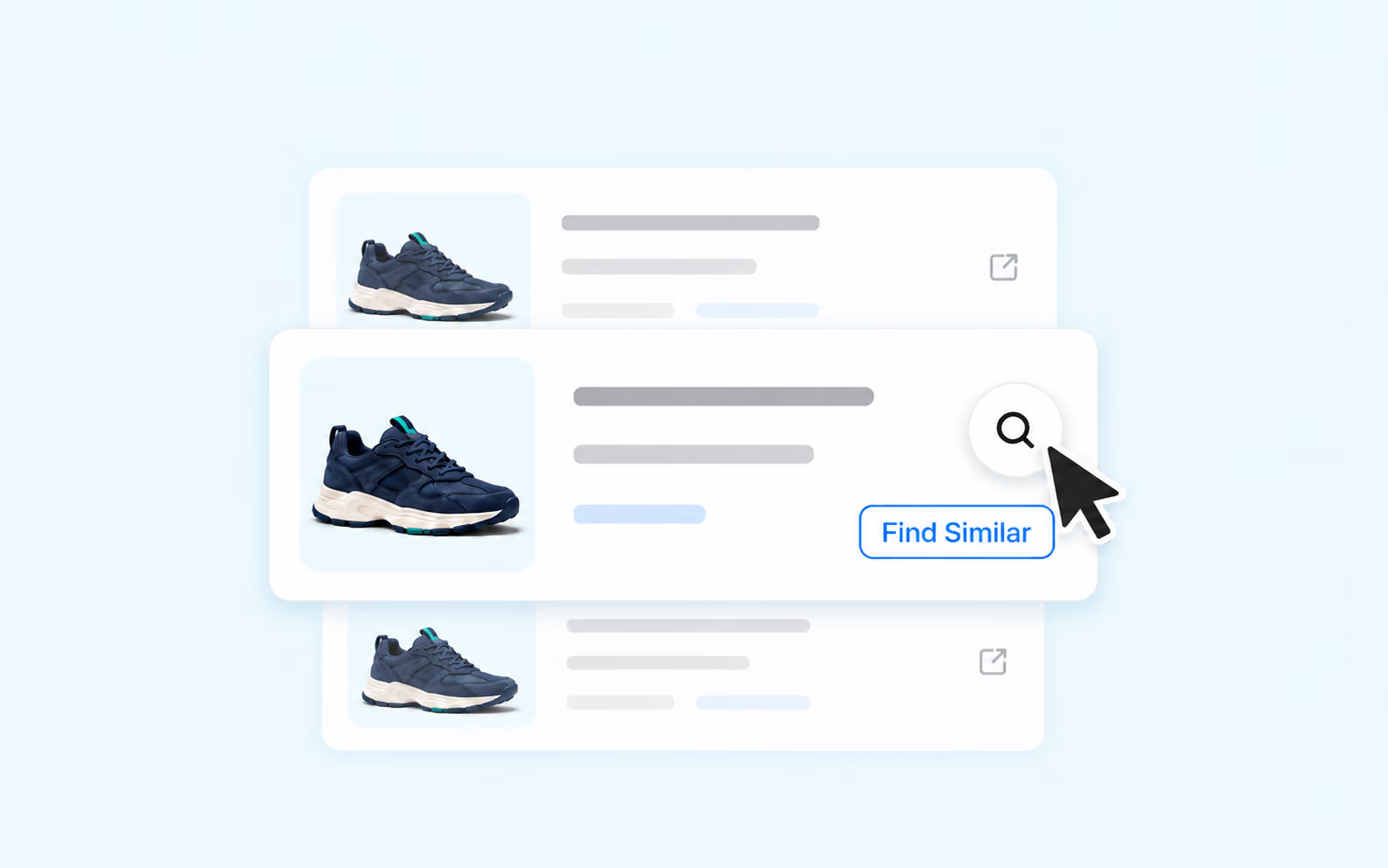
Click the magnifying-glass icon on the product image. DSers returns similar product offers from other suppliers.
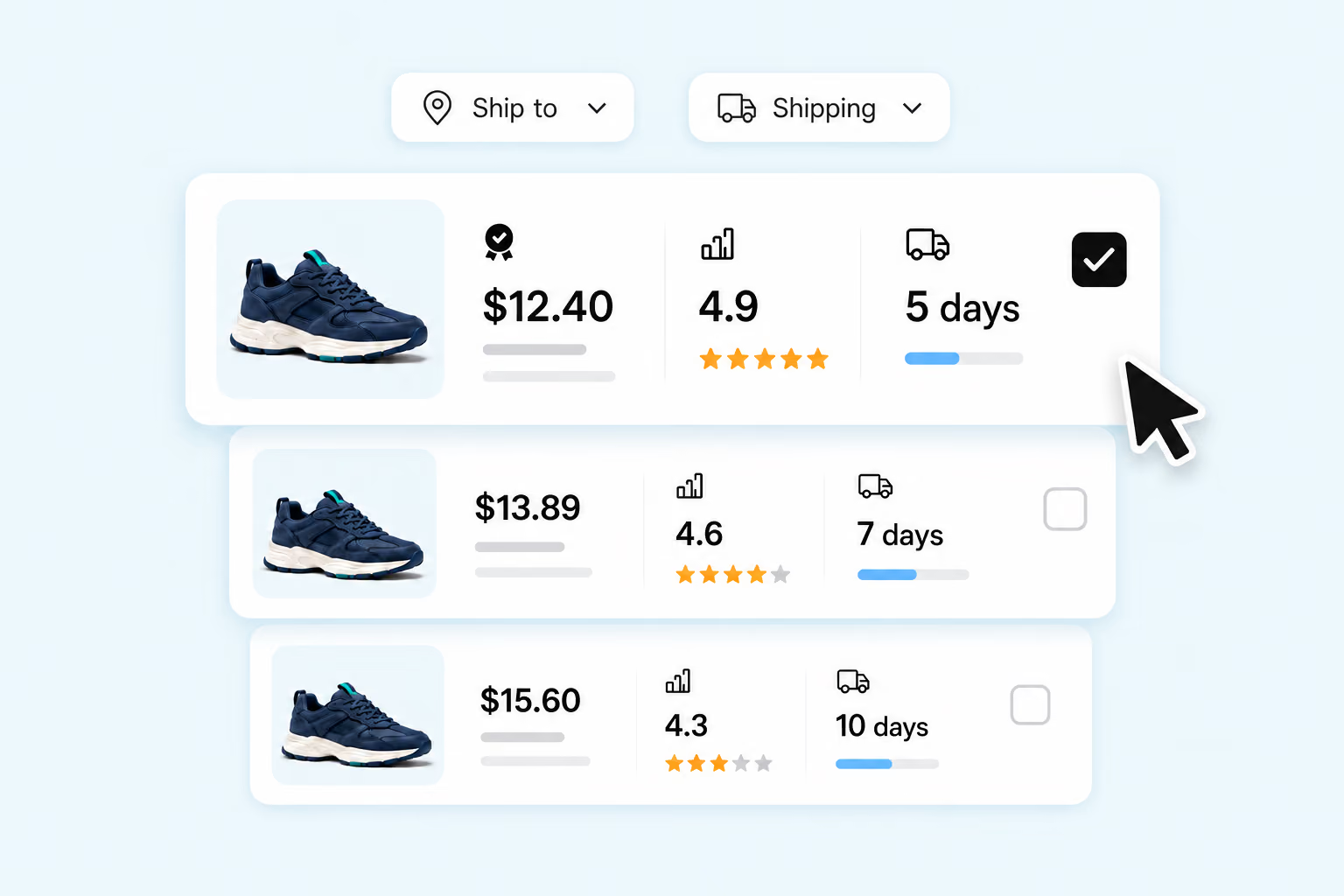
Set the Ship to country and, when needed, the Shipping Method. Review product cost, shipping cost, delivery estimate, sales, and ratings together. Open the supplier listing to verify the details behind a promising result.
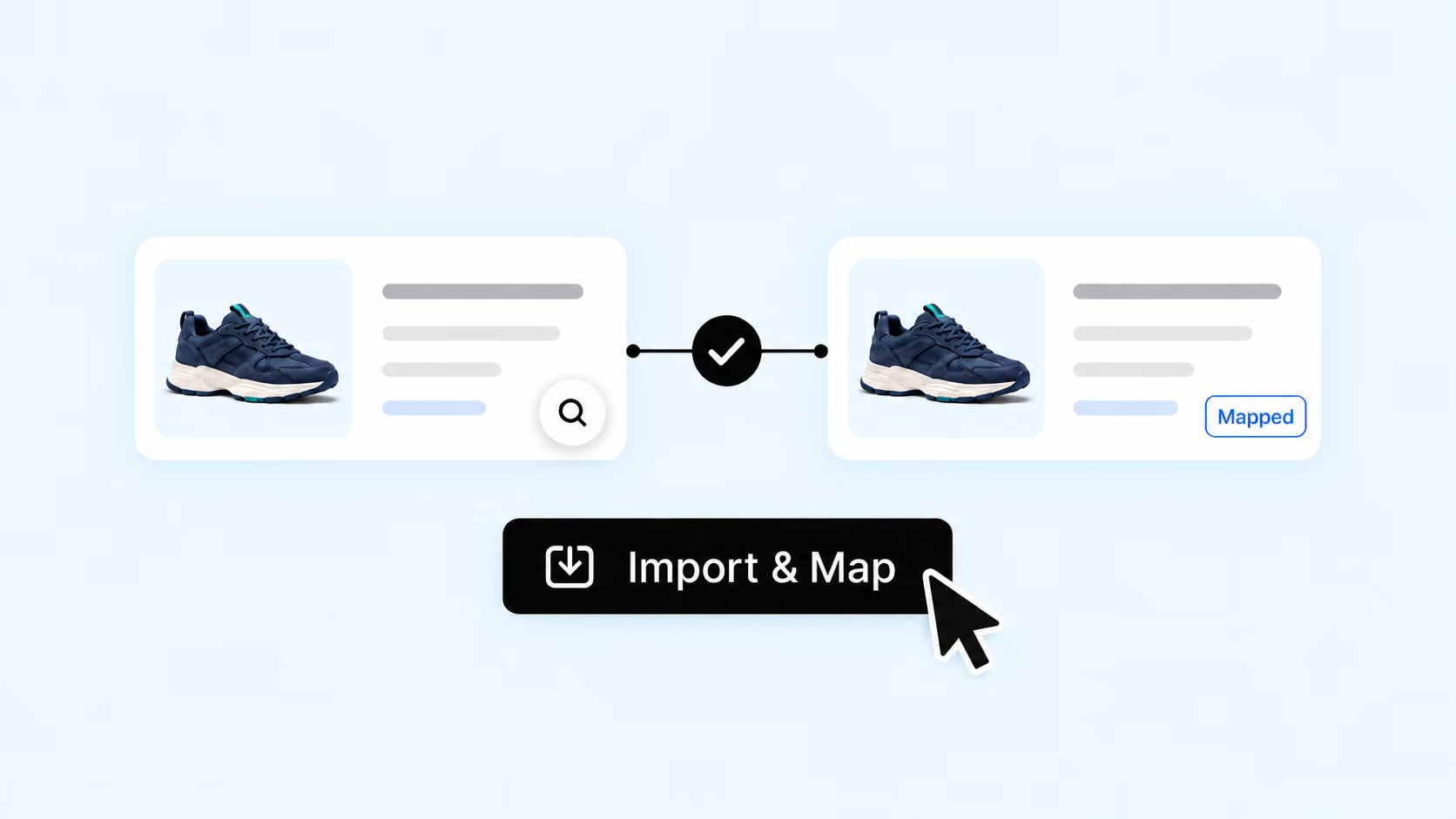
Import the selected supplier into DSers, match the supplier variants to the correct store variants, and save the mapping. Review the setup before relying on it for future orders.
A supplier choice affects more than the product-card price. Compare alternatives by destination, shipping method, and fulfillment signals. The decision stays with you; the research and next step stay connected to the product you manage.
Click the magnifying-glass icon on a product image in supported DSers areas. Supplier Optimizer searches for similar offers and presents product cost, shipping, delivery, sales, and rating information so you can compare alternatives before importing a supplier.
The search icon appears on product images in Import List, My Products, Find Products, Open Orders, and the Mapping Drawer. The Chrome Extension provides an additional image-search route for products you discover outside DSers.
No. DSers organizes comparable offers and relevant supplier signals, but you decide which option fits your store. Review the live listing, shipping details, variants, customer feedback, and product quality before committing.
Shipping availability, cost, and delivery estimates vary by destination. Changing the Ship to country reruns the search so the displayed options better reflect the market you intend to serve.
Complete and review the product mapping so DSers knows which supplier variant corresponds to each store variant for future orders. Changing the mapping does not automatically update the images, description, or price displayed on your storefront.